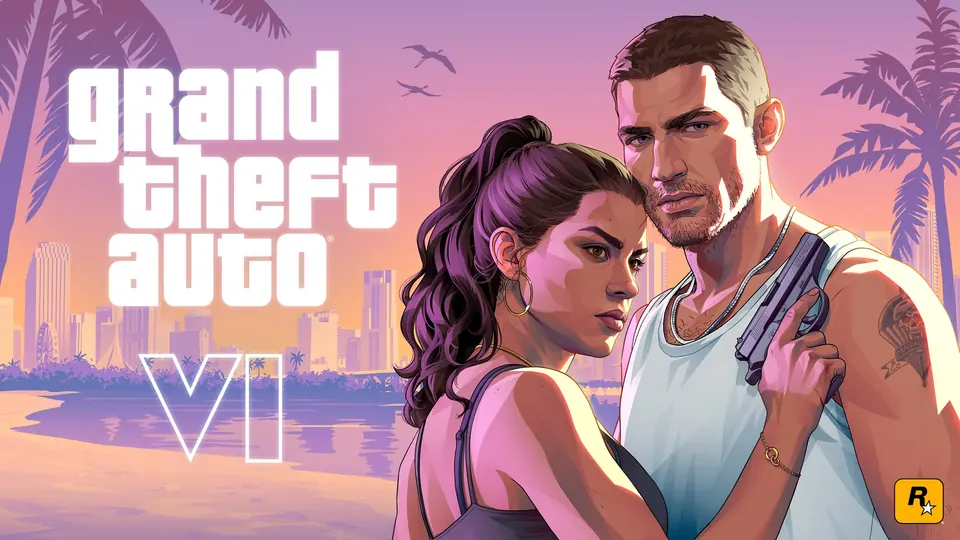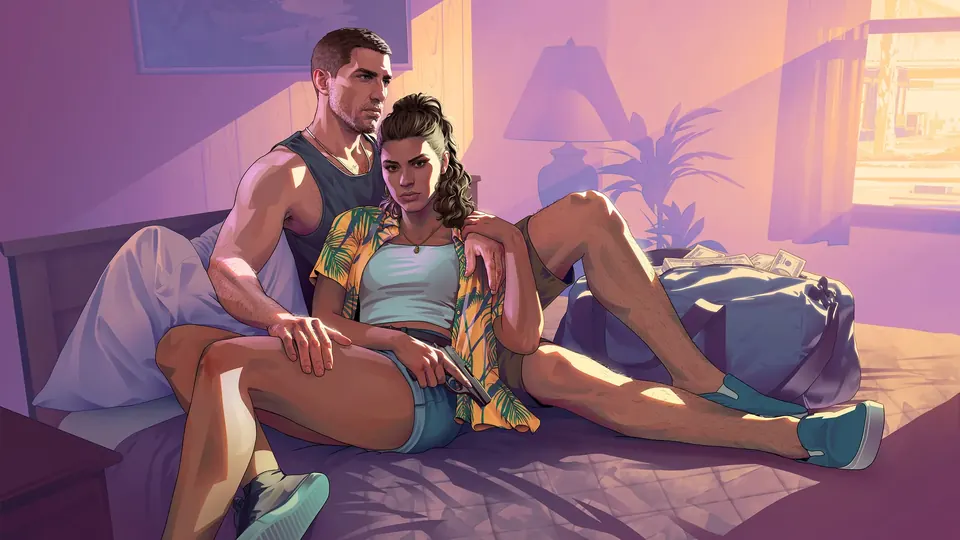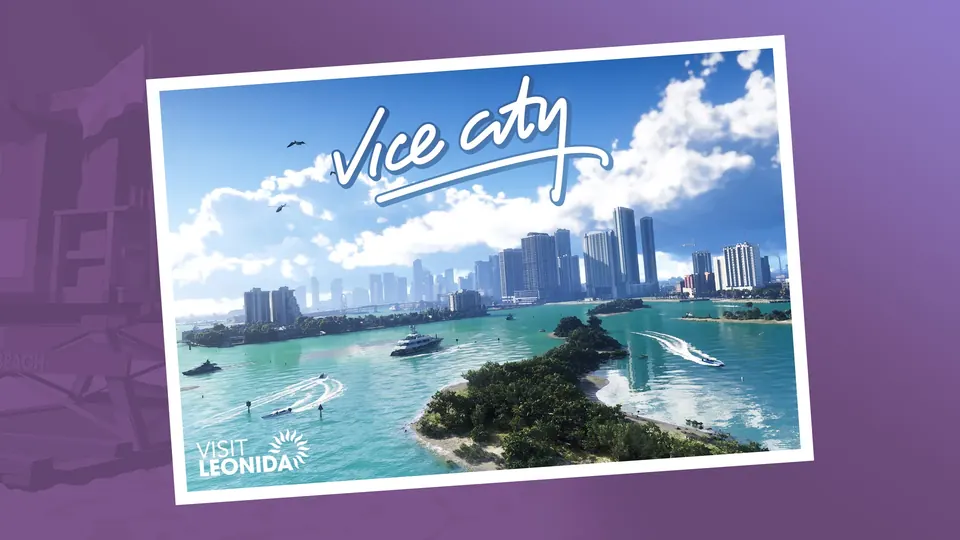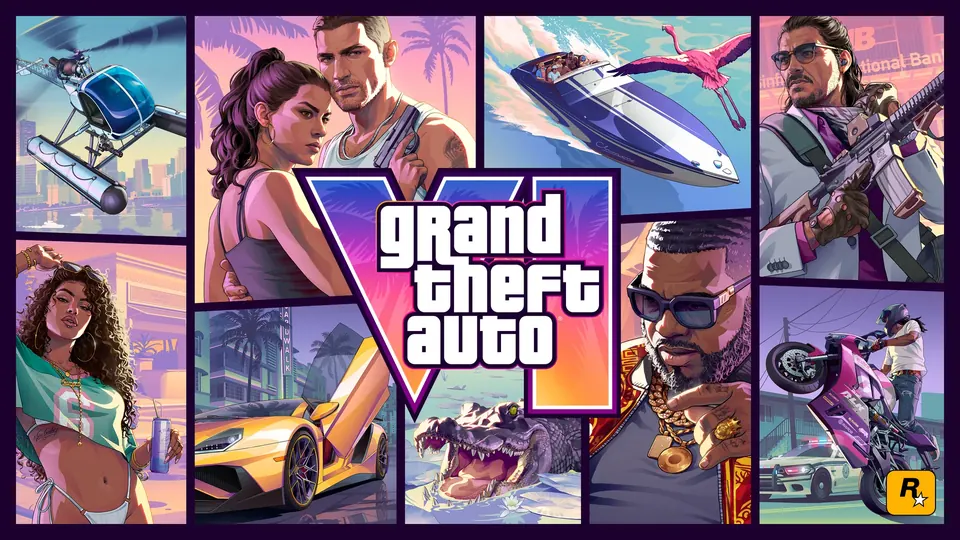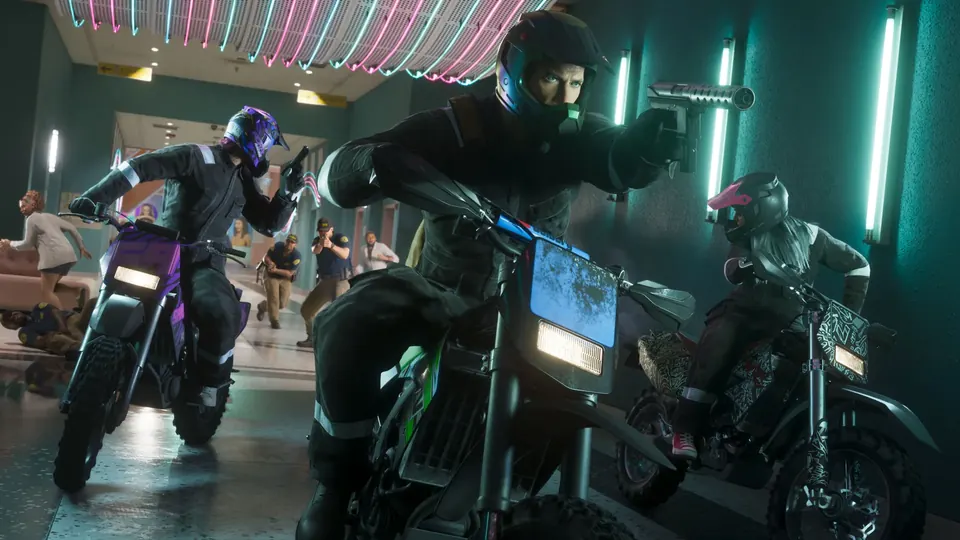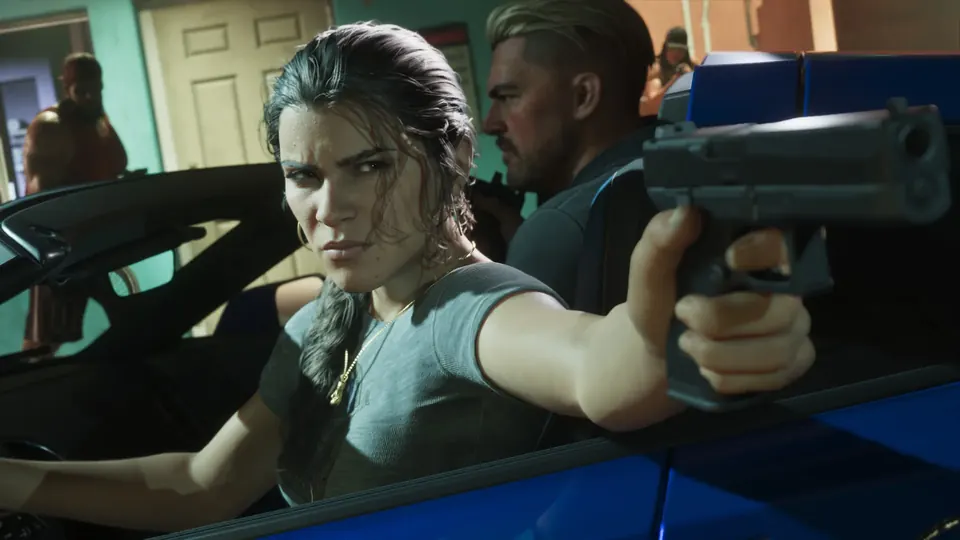
While PC and mobile gamers eagerly await Rockstar’s native ports of Grand Theft Auto VI, millions of players are already exploring the sun-drenched streets of Vice City on their iPhones, iPads, MacBooks, and Windows gaming rigs.
As highlighted by tech authorities like Engadget, you do not need to sit in front of your television to experience the state of Leonida. By leveraging PlayStation Remote Play and Xbox Cloud Gaming, you can stream the full next-gen experience to portable screens anywhere in the world.
Here is the complete step-by-step setup guide on how to stream and play GTA 6 on iPhone, iPad, Mac, and PC with optimal visuals and minimal latency.
1. Streaming GTA 6 on iPhone, iPad & Mac (PS Remote Play)

┌─────────────────────────────────────────────────────────────┐
│                 PS REMOTE PLAY HARDWARE CHECKLIST           │
├─────────────────────┬───────────────────────────────────────┤
│ Required Host       │ PlayStation 5 Console (Powered or Rest│
│ Supported Devices   │ iPhone (iOS 16+), iPad (iPadOS), Mac  │
│ Controller          │ DualSense or Backbone One Mobile Grip │
│ Minimum Network     │ 15–25 Mbps (5GHz Wi-Fi / 5G Cellular) │
│ Host Connection     │ Wired Cat6 Ethernet Cable Recommended │
└─────────────────────┴───────────────────────────────────────┘
Step-by-Step Setup:
- Enable Remote Play on PS5: On your PS5 console, navigate to Settings > System > Remote Play and toggle Enable Remote Play to ‘ON’.
- Configure Rest Mode: Go to Settings > System > Power Saving > Features Available in Rest Mode and enable Stay Connected to the Internet and Enable Turning on PS5 from Network.
- Install the App: Download the official PS Remote Play app from the Apple App Store on your iPhone, iPad, or macOS App Store.
- Pair Your DualSense Controller:
- On your DualSense controller, hold the Create Button and the central PS Button together for 3 seconds until the light bar flashes blue.
- Open your iPhone/iPad/Mac Bluetooth Settings and select “DualSense Wireless Controller”.
- Connect & Launch: Sign in with your PlayStation Network credentials in the app and tap your PS5 console to boot up GTA 6 instantly.
2. Streaming GTA 6 on Windows PC & Xbox One (Xbox Cloud / Remote)
For players with an Xbox Series X|S copy:

┌─────────────────────────────────────────────────────────────┐
│                 XBOX REMOTE PLAY & CLOUD OPTIONS            │
├─────────────────────┬───────────────────────────────────────┤
│ Xbox One Play       │ Stream via Xbox Cloud Gaming          │
│ Windows PC Play     │ Xbox App for Windows (Remote Play)    │
│ Browser Play        │ xbox.com/play (Safari, Chrome, Edge)  │
│ Controller Support  │ Xbox Wireless Controller via USB / BT │
└─────────────────────┴───────────────────────────────────────┘- Playing on Xbox One: If you haven’t upgraded to a current-gen console, you can play GTA 6 on your base Xbox One through Xbox Cloud Gaming. Search for Grand Theft Auto VI on the dashboard and select the Cloud Stream (Cloud Icon) button to play immediately with zero local installation.
- Playing on Windows PC: Open the native Xbox App on Windows 10/11, click your console icon in the top left, and select Remote Play. Your PC monitor will mirror your Xbox Series X in crystal-clear 1080p at 60Hz.
3. How to Eliminate Input Lag & Stutter
Streaming an intensive open-world action title requires precise frame pacing, especially during high-speed police pursuits:
┌─────────────────────────────────────────────────────────────┐
│                 LATENCY REDUCTION CHECKLIST                 │
├─────────────────────────────────────────────────────────────┤
│ 1. Hardwire your console to your router via Ethernet.       │
│ 2. Use 5GHz Wi-Fi (avoid crowded 2.4GHz home bands).        │
│ 3. In PS Remote Play settings, set Video Quality to 1080p.  │
│ 4. Turn off HDR in remote app to prevent bandwidth choke.   │
│ 5. Close background torrents or 4K video streams on home net│
└─────────────────────────────────────────────────────────────┘- The Ethernet Golden Rule: Connecting your host console directly to your router with an Ethernet cable cuts latency by over 60%, eliminating the micro-stutter that ruins vehicle cornering.
- Disable HDR on Mobile: Turning off HDR streaming within the Remote Play settings prevents stream compression artifacts and frees up 20% of network packet bandwidth.
Whether you are lounging in bed with an iPad Pro or sneaking in a quick mission on your laptop during lunch break, modern streaming technology ensures Leonida is always at your fingertips.
Explore more technical tutorials, hardware comparisons, and gameplay secrets on Vareno.